DevKinsta Review 2026: The Free Local WordPress Tool We Recommend
Last updated: April 24, 2026 · By WheelieNames team
What is DevKinsta?
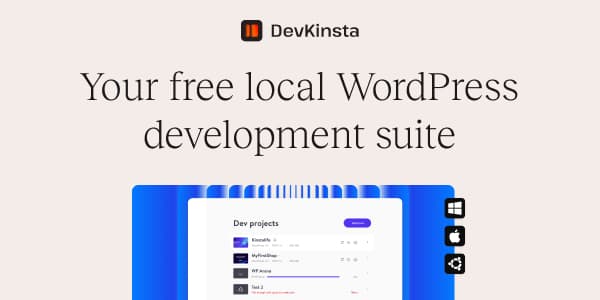
DevKinsta is a free desktop application made by Kinsta that lets you run a full WordPress environment on your own computer, no internet connection required after installation. You get a local WordPress site with a database, PHP, and a local server, all managed through a simple graphical interface.
Think of it as WordPress.com, but running entirely on your laptop. You can build pages, test plugins, try themes, and debug issues without affecting any live website. When you're ready to go live, you can push the site directly to Kinsta hosting or export it to any other WordPress host.
We started recommending DevKinsta to teachers after one of our own team members used it to build a classroom website over a weekend before spending a single dollar on hosting. The process was genuinely straightforward: download, install, click "New Site," and you have a working WordPress install in about 90 seconds. That kind of zero-friction start matters when you have 30 other things on your plate and you just want to see if WordPress is the right tool for your project.
Who should use DevKinsta?
Teachers and educators building their first website
DevKinsta is the safest way to learn WordPress. You can experiment freely: install plugins, break things, try new themes, without any risk of something going wrong on a live site that students or parents can see. It's also completely free, which matters when you're building something for a classroom on a teacher's budget.
Once your site looks the way you want it, you can move it to live hosting. At that point, Kinsta's managed hosting makes the transition seamless with a one-click push, but you are never locked in. You can export to any host you prefer.
Content creators testing new designs
If you already have a live WordPress site and want to test a major redesign, a new plugin, or a WordPress version upgrade without risking your live audience's experience, DevKinsta gives you a safe local copy to experiment on. No staging environment fees, no risk, no awkward "site is in maintenance mode" messages for your readers.
Anyone evaluating Kinsta hosting
DevKinsta uses the same dashboard interface as Kinsta's hosted environment. If you are considering Kinsta for hosting but want to see how the tools feel before committing, DevKinsta is the no-cost way to experience the Kinsta workflow. Build locally, get comfortable with the interface, then decide.
School web coordinators managing multiple sites
DevKinsta lets you run multiple local WordPress sites at the same time, each in its own isolated container. That means you can have a test version of the school homepage, a sandbox for a new department page, and a personal portfolio project all running simultaneously without any of them interfering with each other.


DevKinsta vs Local WP (LocalWP) — which one is better for teachers?
Both DevKinsta and LocalWP (made by WP Engine) are free local WordPress development tools that do essentially the same thing: run WordPress on your computer without hosting. The question teachers ask us most often is which one to pick. Here is our honest take.
DevKinsta is simpler. The interface has fewer options, which sounds like a limitation but is actually a feature for someone who is not a developer. You open it, click "New Site," fill in a name and a password, and you are done. LocalWP has more configuration options (custom PHP version per site, custom MySQL version, addon support), which developers appreciate but which add friction for non-technical users.
The other meaningful difference is the push-to-live workflow. DevKinsta has a dedicated "Push to Kinsta" button built into the dashboard. If you eventually host with Kinsta, moving your local site live takes one click and about five minutes. LocalWP has a similar button for WP Engine. For teachers on shared hosting like SiteGround or Bluehost, neither tool has a direct push option, so you would use a plugin like Duplicator or All-in-One WP Migration either way.
| Feature | DevKinsta | LocalWP |
|---|---|---|
| Interface | Very simple, beginner-friendly | More options, slightly steeper curve |
| Push to live | One click to Kinsta | One click to WP Engine |
| Best for | Teachers, non-technical educators, Kinsta users | Developers, WP Engine users, power users |
Our recommendation: if you are a teacher or content creator who is not a developer, start with DevKinsta. If you later decide you need more advanced local server options, LocalWP is always there. Both are free so there is nothing to lose by trying DevKinsta first.
What you can build with DevKinsta — use cases for educators
- Build your classroom website before committing to hosting costs. This is the most common reason teachers come to DevKinsta. You get to build the entire site, choose your theme, set up your pages and navigation, and only pay for hosting once you are confident in what you have made. Given that school budgets are tight, avoiding a month or two of wasted hosting fees on a site you end up scrapping is genuinely useful.
- Test a new theme without touching your live site. If you have an existing school or classroom website that students and parents visit regularly, the last thing you want is to break it while trying out a new theme. Pull a copy into DevKinsta, switch the theme, check everything, and only apply the change to your live site when you know it works.
- Practice WordPress before using it professionally. DevKinsta removes the fear of breaking something. You can delete a local site and recreate it in under two minutes. That freedom makes it one of the best learning environments for teachers who are new to WordPress and do not want to make mistakes in front of their school community.
- Test plugins for a lesson or resource page. Quiz plugins, booking forms for parent-teacher meetings, embedded tools like WheelieNames for classroom activities, video embedding plugins, forms for student submissions: all of these need testing before they go live. DevKinsta gives you a safe place to install and evaluate plugins before your students or parents ever see them.
- Develop a school newsletter template and only publish when it is ready. If your school uses WordPress as a content management system for newsletters or announcements, DevKinsta lets you build and refine your template locally before pushing it live. You avoid the situation where parents see a half-finished design while you are still working on it.
System requirements and setup time
DevKinsta is not demanding. Most computers bought in the last five years will run it without issue. Here is what you need:
- Operating system: Windows 10 or 11, macOS (Intel and Apple Silicon), or Ubuntu Linux
- RAM: 4 GB minimum, 8 GB recommended (8 GB is typical for most modern laptops)
- Disk space: Each WordPress site uses roughly 500 MB to 1 GB depending on media uploads
- Docker: Required, but DevKinsta installs it automatically during setup. You do not need to manage Docker yourself.
The setup process takes about 10 to 15 minutes the first time: download the installer from the Kinsta website, run it, let it install Docker and the DevKinsta app, then open it. After that, creating a new WordPress site takes under two minutes. You click "New Site," give it a name, set a username and password, and DevKinsta builds the entire WordPress environment automatically.
You need an internet connection for the initial installation and for installing plugins and themes (WordPress pulls those from the plugin repository). After setup, DevKinsta works offline. If you are building a site in a location with limited connectivity, install your plugins and themes while connected, then work offline as needed.
How to get started
- Download DevKinsta from the Kinsta website. No account required. The download is free and immediate. Get DevKinsta free →
- Run the installer. DevKinsta installs Docker as a dependency to manage the local server containers. The installer handles this automatically. You will see a progress bar; the whole process takes around 10 minutes on a typical broadband connection.
- Create a new site. Click "Add Site," give it a name, choose your WordPress version and PHP version (the defaults are fine for most teachers), and DevKinsta builds everything in under two minutes.
- Open WordPress admin. Click "WP Admin" in the DevKinsta panel. You get a full WordPress installation. Install themes, add plugins, build your pages exactly as you would on a live site.
- Push live when ready. If you want to host with Kinsta, use the "Push to Kinsta" button in the DevKinsta dashboard. For any other host, use the WordPress export tools or a migration plugin to move your content.

Pros and cons
What we love
- ✓Completely free — no subscription
- ✓Works offline once installed
- ✓No risk to live sites
- ✓Full WordPress environment (any theme/plugin)
- ✓One-click push to Kinsta hosting
- ✓Clean, non-technical interface
- ✓Multiple sites running simultaneously
- ✓Docker managed automatically — no manual setup
Things to know
- !Requires Docker (auto-installed, but uses disk space)
- !Not for hosting live sites — local dev only
- !Push-to-live works best with Kinsta hosting
- !Internet needed for initial install and plugin downloads
Common questions teachers ask about DevKinsta
The most common question we hear from teachers is whether they need to know how to code to use DevKinsta. The answer is no. The entire interface is point-and-click. You click buttons to create sites, install plugins, and open the WordPress admin. There is no command line involved, no configuration files to edit, and no PHP to write. If you can use a standard desktop app, you can use DevKinsta.
The second question teachers ask is whether the site will look the same when it goes live. If you host with Kinsta, yes: DevKinsta mirrors the Kinsta server environment, so what you see locally is essentially what you will see on the live server. If you move to a different host, themes and content will migrate cleanly. Minor differences in server configuration (caching behavior, PHP version, server software) can occasionally cause small visual or performance differences, but these are rare and almost never affect how a site looks to visitors.
A third question is whether running DevKinsta affects your live site in any way. It does not. Your local DevKinsta environment and your live website are completely separate. DevKinsta runs on your computer and has no connection to your live server unless you explicitly push a site using the Kinsta integration. You can break, delete, and rebuild local sites as many times as you want without anything affecting what your students or parents see online.
After DevKinsta — choosing your live hosting
Once you have built and tested your site locally, you have a few options for going live. The path you choose depends mostly on where you plan to host.
Option 1: Push to Kinsta (one click)
If you decide to host with Kinsta, DevKinsta has a dedicated "Push to Kinsta" button in the dashboard. Click it, select your Kinsta account, and the tool migrates your files and database automatically. The whole process takes five to ten minutes and requires no manual export or import steps. This is the smoothest path if you want the simplest possible transition from local to live.
Option 2: Export and import to any host (20 to 30 minutes)
For any other host, the standard process is to export your site using a migration plugin (Duplicator or All-in-One WP Migration are both free and reliable), download the export file, install WordPress on your host, upload the export file, and run the import wizard. This takes about 20 to 30 minutes the first time you do it. After that, it becomes familiar quickly.
Why Kinsta is the natural next step
Beyond the one-click push, Kinsta uses the same infrastructure locally and live, which means fewer surprises when you go from DevKinsta to production. Kinsta also offers free site migration for new accounts and a 30-day money-back guarantee, so you can test the live hosting environment before committing. For teachers who want managed hosting that handles security updates, backups, and performance optimization automatically, Kinsta is worth the look.
Affiliate link. Full disclosure.
Frequently Asked Questions
Is DevKinsta really free?
What operating systems does DevKinsta support?
Do I need technical knowledge to use DevKinsta?
Can I push my DevKinsta site to live Kinsta hosting?
Does DevKinsta work with any WordPress theme or plugin?
Is DevKinsta good for teachers building school websites?
Does DevKinsta require a Kinsta hosting account?
Can I import an existing WordPress site into DevKinsta?
How is DevKinsta different from XAMPP or WAMP?
Is DevKinsta good for a teacher learning WordPress for the first time?
Also see: Our full Kinsta managed hosting review — if DevKinsta made you curious about their hosting product.